White Collar Handyman
In-Home and In-Office Technology Concierge Services
Lessons & Tutoring • Repair • Troubleshooting • Upgrades & Installation
Fast Response • Reasonable Rates • In Your Home or Office • Same Day Service Available
(781) 989-2373
Hey! We've moved to a new URL to better reflect who we are and what we do! Please visit Rob Falk Technology Concierge Services at http://robfalk.net and update your bookmarks.
Showing posts with label Backup. Show all posts

Friday, August 10, 2012

Serious Stuff • Important to Read • Important to Do

A recent hacking event highlights the need for all computer users to take a more active role in securing their computers and online accounts.

If you do not know what "Two-Step Authorization" is, or simply don't use it, now is the time to educate yourself and change your ways.

Please read the following one sentence summary of an article that I urge you to read, and click on that sentence to open the story in a new page.


Please set up Two-Step Authorization at Google.

Please start using a different, non-trivial password at every online site.

Please start using an application like 1Password to help you manage these passwords.

Please start regularly backing up your files.

If you need help, you know where I am!

Friday, May 18, 2012

Too Much of a Good Thing?

TMS IconI don't know about you, but for me, Time Machine runs too often and takes up too much of my Mac's CPU (slows down my work), bandwidth (slows down my network connection) and too much disk space (too many backups too often). This is particularly annoying when I am working online, on photo or video editing, or sometimes just listening to music and surfing.
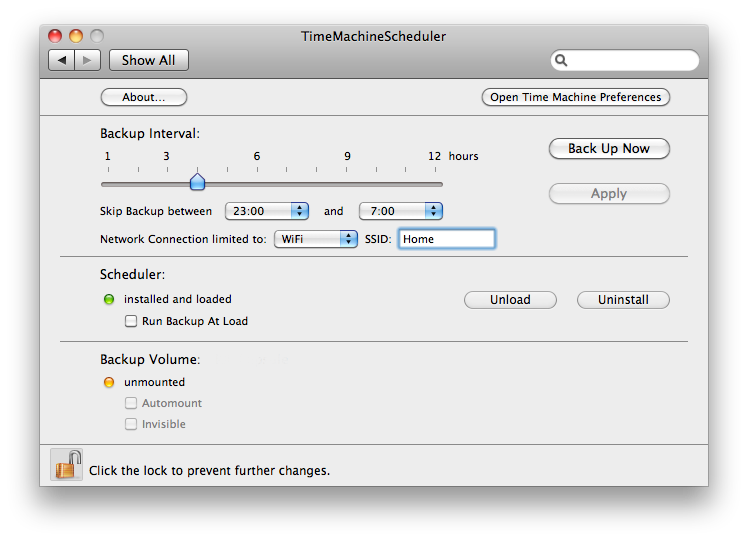
What is to be done?

Simple answer, download and install TimeMachineScheduler. It's a free Preference Pane that will allow you to set the interval between backups to
anywhere from 1 to 12 hours, and to not back up at all between certain hours. It runs on Intel Macs, OS 10
.5+. You could do this by messing with hidden Apple preference files and a text editor, which is how I used to do it, but why bother when something as simple and elegant as TimeMachineScheduler is available.

Wednesday, May 9, 2012

Fsck your Sparse Bundle!: A Quick P.S. on the Time Machine Verification Failure

I'm happy to report that I found a way to fix the Time Machine backup that I wrote about on Monday, and my Time Machine backups are fully restored.

If you find yourself with a Time Machine backup or Time Capsule that gives you the message...

Time Machine completed a verification of your backups. To improve reliability, Time Machine must create a new backup for you

...here are a couple of ideas on how to fix it:

1. Go fsck your sparse bundle! It's not a vulgarity, it's real Linux advice! Basically, it's Disk Utilities on steroids. Follow the instructions I found here. They look scary but they're really not that bad.
or
2. Give me a call.

Monday, May 7, 2012

Backup... And Backup the Backup

Today I got a message from my Mac Time Machine that it couldn't verify my backup, and wanted to start over. Since all is working fine on my computer right now, no big deal, right?

Well, no big deal, comparatively. I lose all the versions of all my documents and files, dating back many many months. Not a killer, I guess. But what if something goes wrong (or is wrong but I don't know it yet) while that new backup is being made? If my hard drive dies or my computer crashes before I have a new backup, that would be a problem.

Think of your backup as a safety net. Think of your data as you on a high wire. There you are, a few hundred feet up in the air, when your assistant hollers up, "Hey! The safety net just frickin' disappeared! I'm going to go get a new one. I'll be back in a few hours, maybe a day or so."

It would be nice to have a spare safety net, no? You didn't even know your thesis, dissertation, priceless photos and rare bootleg recordings were engaged in regular death defying feats!

Hard drives are big and cheap these days. That's good and bad. Good because they're affordable, bad because they aren't as dependable as they used to be and because you can store so much stuff on one of them that the loss of a drive is almost always catastrophic.

Develop a daily backup strategy. On a Mac, Time Machine is good. Then, backup the backup on a regular basis. Carbon Copy Cloner, Crash Plan, and Mozy are all excellent ideas. And don't forget
Drive and Dropbox. They are both excellent places to stash your documents. Don't forget that photos and music can take a lot of space.

The best backup strategy is the one you use. Don't wait. If you don't have a backup plan, do it now. If you need help, I can set up one that you will use, in about an hour.